 luckpanda
AI Chatbot for WordPress: Add One With or Without a Plugin
Add an AI chatbot to WordPress by pasting the widget script into the footer with a code snippet plugin, the Site Editor or wp_footer. Steps and checks.
On this page
- Do you need a plugin to add an AI chatbot to WordPress?
- What you need before you start
- Step by step: add the chatbot script to WordPress
- Without any plugin: the Site Editor footer
- Without any plugin: a child theme
- Where do you paste a chat widget script in WordPress?
- How do you check the chatbot works?
- Will a chatbot slow down my WordPress site?
- Can the chatbot answer from my WordPress pages?
- Common problems and fixes
- An AI chatbot that installs this way: LuckPanda Chatbot
TL;DR: You do not need a chatbot plugin to put an AI chatbot on WordPress. Every chat widget is a script that has to load before the closing body tag, and WordPress already has a place for that: the wp_footer hook. Paste the script with a header-and-footer plugin, a Custom HTML block in your footer template part, or your child theme, then check it in a private window.
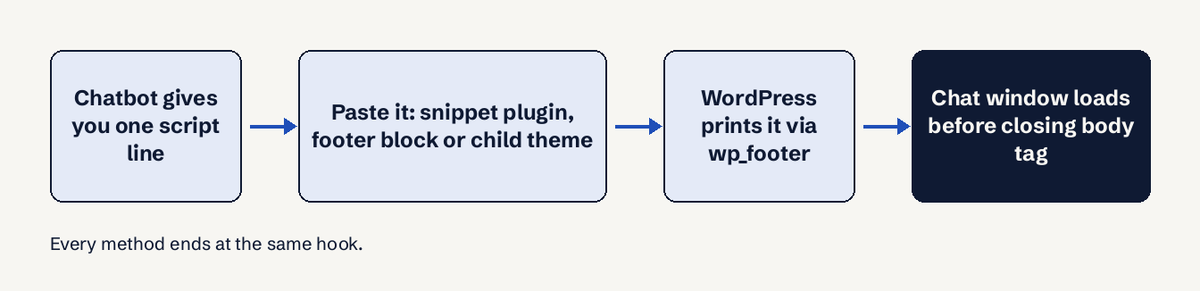
An AI chatbot on WordPress has two parts: the bot itself, which lives with the chatbot provider and answers from your pages, and a one-line script that shows the chat window on your site. Plugins from vendors such as Tidio or Tawk.to bundle that script into a WordPress plugin; script-only tools give you the line to paste yourself. Both end in the same place: WordPress prints the script through wp_footer(), which "prints scripts or data before the closing body tag on the front end" (WordPress developer reference). This guide shows the three ways to place it, how to check it, and what to fix when the window does not appear.
Do you need a plugin to add an AI chatbot to WordPress?
No. A plugin is a convenience, not a requirement. A vendor plugin saves you one paste and sometimes adds a settings screen inside wp-admin. The cost is one more plugin to update, and you are tied to that vendor's plugin release cycle.
Use a vendor plugin when you want to manage the bot from inside WordPress and the vendor keeps the plugin current. Use the script when the vendor has no plugin, when you want fewer plugins, or when you run the same bot on several sites that are not all WordPress.
| Approach | What you install | Survives a theme change | Who can do it |
|---|---|---|---|
| Vendor chatbot plugin | The vendor's plugin | Yes | Administrator |
| Header and footer plugin (WPCode) | One general snippet plugin | Yes | Administrator |
| Custom HTML block in the footer | Nothing | Only while the theme is active | Administrator or editor with unfiltered_html |
| Child theme with wp_footer | Nothing | No, it lives in the theme | Developer |
What you need before you start
- An AI chatbot that is already built and tested, with its embed script copied. Build and test it first: a widget that answers badly on your live site is worse than none.
- Administrator access to WordPress. On a self-hosted site that is your wp-admin login.
- On WordPress.com, check your plan first. Installing plugins is available on the paid Personal, Premium, Business and Commerce plans; free sites must upgrade (WordPress.com plugins). The code you can add also depends on your plan and whether hosting features are activated (WordPress.com custom code).
- A private browser window to test as a visitor.
Step by step: add the chatbot script to WordPress
The steps below use the most reliable method, a header and footer snippet plugin, because it keeps the script when you change or update your theme.
- Build the bot and copy its script. In your chatbot tool, point it at your site, test a few real questions, then open its install or embed screen and copy the script line exactly as given.
- Install a header and footer plugin. In wp-admin go to Plugins, Add New, search for WPCode and click Install Now, then Activate. WPCode (formerly Insert Headers and Footers by WPBeginner) says it is used on over 2 million websites and adds header and footer scripts without editing your theme's functions.php (WPCode on WordPress.org).
- Open the footer box. Go to Code Snippets, Header and Footer. You will see three boxes: Header, Body and Footer.
- Paste the script into Footer. Footer prints just before the closing body tag, which is where chat widgets expect to load. Do not paste it into Header: it will work in most cases but loads earlier than it needs to.
- Save Changes. Click Save Changes at the top right.
- Clear caches. If you use a caching plugin (WP Rocket, W3 Total Cache, LiteSpeed Cache) or a host cache, purge it so visitors get the new page.
- Test as a visitor. Open your site in a private window, wait a few seconds, and ask the bot a question whose answer is on one of your pages.
Without any plugin: the Site Editor footer
On a block theme (Twenty Twenty-Four, Twenty Twenty-Five and most new themes), the footer is a template part you edit in the Site Editor (WordPress.org: Site Editor).
- Go to Appearance, Editor, Patterns, then open the Footer template part.
- Add a Custom HTML block: click the block inserter or type /html and press Enter (WordPress.org: Custom HTML block).
- Paste the chatbot script into the block's HTML panel.
- Click Save, then test in a private window.
Two limits apply. Since WordPress 7.0 the Custom HTML block has separate HTML, CSS and JavaScript panels, and the CSS and JavaScript panels show only for users with the unfiltered_html capability. Without that capability (for example, a Contributor) WordPress sanitizes the block with wp_kses() and strips script tags when the page is saved, so the widget silently disappears. And the script lives in the theme's footer, so it goes away if you switch themes.
Without any plugin: a child theme
On a classic theme, a developer can add the script to a child theme's functions.php with a function hooked to wp_footer, or enqueue the widget file with wp_enqueue_script(). Since WordPress 6.3 that function accepts a loading strategy of defer or async in its arguments (wp_enqueue_script reference). Use a child theme, not the parent theme: a theme update overwrites the parent's files.
Where do you paste a chat widget script in WordPress?
Paste it in the footer, so WordPress prints it just before the closing body tag. In WPCode that is the Footer box; in a block theme it is the Footer template part; in code it is the wp_footer hook. Placing it in the body of a single page shows the chat only on that page, which is useful when you want the bot only on pricing or contact pages.
How do you check the chatbot works?
Check three things, in order:
- It appears. In a private window the chat button shows on every page you expect, on desktop and on a phone.
- It answers from your pages. Ask about something specific: your opening hours, a product's price, your returns rule. Compare the answer with the page.
- It admits gaps. Ask about something that is not on your site. A good bot says it does not know and offers to pass the chat to a person instead of guessing.
Will a chatbot slow down my WordPress site?
A well-built widget adds little to your page load, because it loads from the footer and should not block the page from drawing. Browsers fetch scripts marked async in parallel and run them as soon as they arrive; scripts marked defer run after the page is parsed, in order (MDN: the script element). Look at the vendor's line: if it has async or defer, leave it as it is. To check the effect, run your home page through PageSpeed Insights before and after you add the widget and compare the Core Web Vitals. Google's "good" thresholds are a Largest Contentful Paint of 2.5 s or less and an Interaction to Next Paint of 200 ms or less, measured at 75% of page visits (web.dev: Core Web Vitals). If the widget pushes either number past its threshold, ask the vendor whether the script can load later.
What slows sites down more is stacking chat tools. If you are replacing an old live chat plugin, deactivate and delete it before you add the new script, so visitors do not load two widgets.
Can the chatbot answer from my WordPress pages?
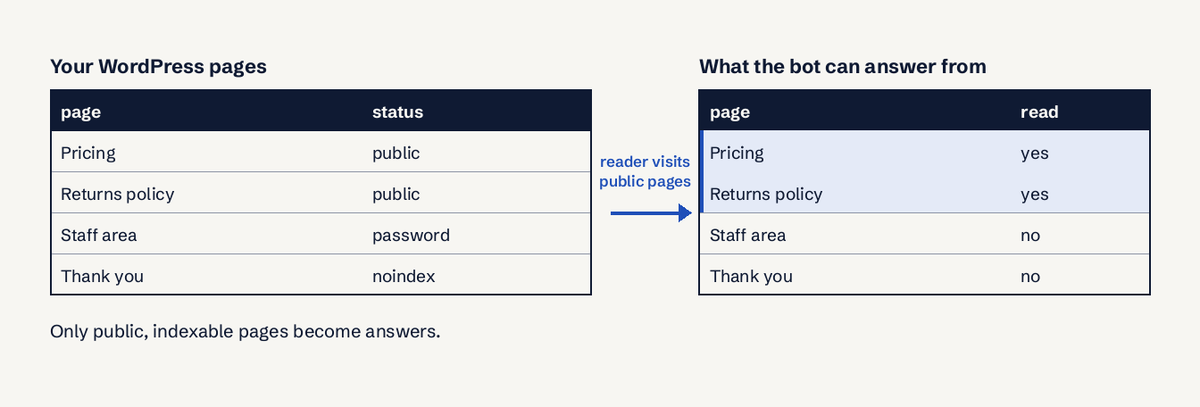
Yes, if it is an AI chatbot that reads your site. The bot does not read WordPress's database; it reads your public pages the way a search engine does. That has three consequences for WordPress sites:
- Pages set to noindex, private pages and password-protected pages are not read. That is usually what you want.
- If your robots.txt blocks crawlers, the bot's reader may be blocked too. Check which user agent your chatbot's reader uses. A security plugin that answers unknown bots with HTTP 403 has the same effect: the bot sees an error page, not your content.
- When you change a price or policy on a page, the bot uses the new text only after it reads the page again. Refresh the source in the chatbot tool after big edits.
The quality of answers depends on the pages. A thin FAQ gives thin answers; see how a knowledge base chatbot works for what to give it.
Common problems and fixes
- The chat button does not appear. Purge your cache plugin and host cache, then reload in a private window. If it still does not appear, view the page source and search for the script: if it is missing, it was not saved where you think.
- The script vanished after saving a block. Your user lacks unfiltered_html, so wp_kses() stripped it. Ask an administrator to add it, or use a header and footer plugin.
- It disappeared after a theme change. It lived in the old theme's footer or functions.php. Move it to WPCode.
- The browser console shows a 404 or 403 for the script. A 404 means the script address was copied wrong or cut off: copy it again from the chatbot tool. A 403 usually means a firewall or security plugin is blocking the vendor's domain; allow it.
- It shows twice. You have both a vendor plugin and a pasted script, or two chat plugins. Keep one.
- An optimization plugin breaks it. Plugins that combine or delay JavaScript can change the order the widget expects. Exclude the chat script from "delay JavaScript" or "combine JS".
An AI chatbot that installs this way: LuckPanda Chatbot
LuckPanda Chatbot is built for exactly this path. Paste your WordPress site's address and it builds a bot that answers from your own pages, with no account needed for the preview (it reads up to 30 pages, answers up to 20 questions and is kept for 7 days unless you sign in). After you keep it, it reads up to 50 pages of your site plus documents of up to 5 MB each (PDF, DOCX, TXT, MD, CSV). It asks a couple of short questions, suggests one next step and hands you qualified leads with every chat saved word for word. When the answer is not on your site it says so and offers a person. There is no WordPress plugin yet: you add its one-line script in the footer, as above. Testing is free; putting it live costs $4.99 per month or $44.91 per year for up to 10 websites, about $0.50 per website if you run several (₹199 per month in India), tax included. Its reader identifies itself as LuckPandaBot and follows robots.txt and noindex (how it handles data).
After it is live, set when the chat opens: live chat trigger examples and live chat best practices cover that. On another builder, the same steps apply to chatbots for Squarespace.
Questions
Do you need a plugin to add a chatbot to WordPress?
No. Any chatbot that gives you an embed script can be added without a chatbot plugin. Paste the script in the footer with a header and footer plugin such as WPCode, a Custom HTML block in the Site Editor footer, or a child theme's wp_footer hook.
Where do you paste a chat widget script in WordPress?
In the footer, so it loads just before the closing body tag. In WPCode that is Code Snippets, Header and Footer, Footer box. In a block theme it is the Footer template part in Appearance, Editor.
Will a chatbot slow down my WordPress site?
Usually only a little, when the script loads from the footer with async or defer. Measure your page in PageSpeed Insights before and after, and remove any old chat plugin so the site does not load two widgets.
Can the chatbot answer from my WordPress pages?
An AI chatbot that reads your website can, from your public pages. It does not read private, password-protected or noindex pages, and it needs to read a page again after you change it.
Can I add a chatbot to a free WordPress.com site?
Not with a plugin: WordPress.com allows plugins on its paid plans only, and what custom code you can add depends on your plan. On a self-hosted WordPress site you can add a script on any setup.
Can I show the chatbot on only some pages?
Yes. Put the script in a Custom HTML block on those pages instead of the footer, or use a snippet plugin's page rules where it has them.