 luckpanda
Google Sheets CRM Template: Free Layout, Formulas and Tools
A Google Sheets CRM template needs four tabs: Contacts, Deals, Activities and a Dashboard. Here is the layout, the formulas and when to move on.
On this page
- Where LuckPanda fits next to your sheet
- What columns should a CRM spreadsheet have?
- How do I add follow-up reminders in Google Sheets?
- Pipeline formulas for the Dashboard
- Free Google resources for a sheet CRM
- Free CRMs to compare when the sheet strains
- Five signs you have outgrown the sheet
- Start here: a one-hour path
TL;DR: A working Google Sheets CRM template is four tabs: Contacts, Deals, Activities and a Dashboard, held together by dropdowns, a next-follow-up date and three formulas. Build it below for free, use the linked Google help pages and add-ons to extend it, and move clients to a CRM such as LuckPanda once quotes, invoices and unpaid balances need to live on the same record.
Already sending quotes from your sheet? Make one free in the LuckPanda quote generator, no account needed, and the client is saved as a record you can keep.
Yes, Google Sheets can work as a CRM for one to three people with up to a few hundred active contacts. It is free, shared in real time and every column is yours to define. What it lacks is the glue: reminders, a history per client, and a link between a deal and the quote and invoice that follow. This guide gives you the exact layout, the formulas for follow-ups and pipeline totals, the free Google resources that fill the gaps, and the signs you have outgrown it.
Where LuckPanda fits next to your sheet
LuckPanda keeps the part a spreadsheet does worst: each client is one record with their contact details and every quote, invoice and receipt you have made for them, and it shows the amount outstanding in each currency (CRM module). Typing a known client's name on a document links it to that record, so nothing is retyped. Creating clients and drafting documents is free; issuing and sending needs a module at $4.99 per module a month (₹199 in India), per module, not per user (pricing). Its lead list, deal pipeline and forms are being built, so today many small businesses keep the lead sheet below and move a contact into LuckPanda when they quote.
What columns should a CRM spreadsheet have?
A CRM spreadsheet needs one tab per kind of record, with an ID column linking them. This is the layout we recommend:
| Tab | Columns | Why |
|---|---|---|
| Contacts | Contact ID, Name, Company, Email, Phone, Country, Source, Owner, Created | One row per person; Source tells you which channel pays |
| Deals | Deal ID, Contact ID, Deal name, Stage, Value, Currency, Expected close, Next follow-up, Last contact, Lost reason | The pipeline; one row per opportunity |
| Activities | Date, Contact ID, Type (call, email, meeting), Notes, Next step | The history a sheet otherwise forgets |
| Dashboard | Pipeline by stage, deals due today, won this month | Formulas only, nobody types here |
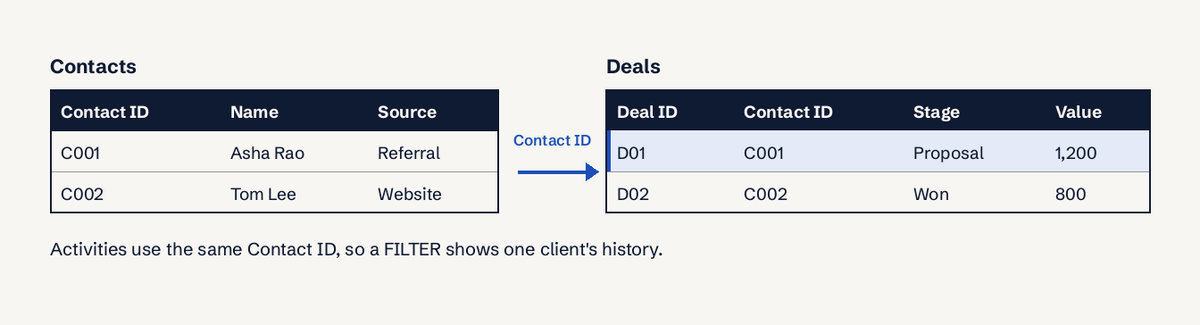
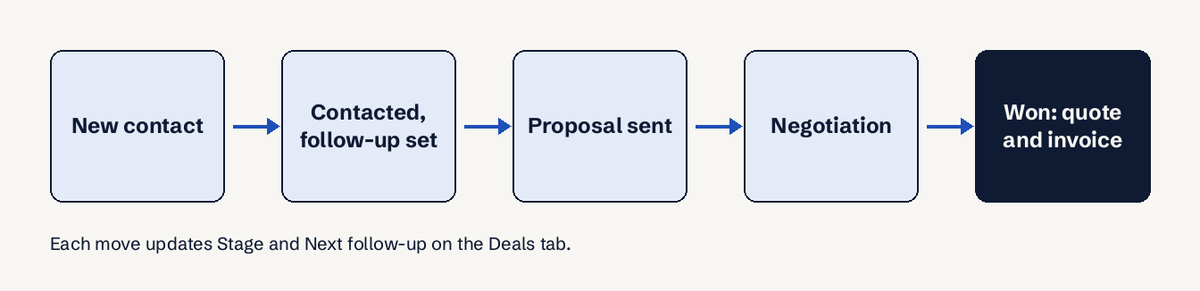
Make Stage, Source, Owner and Type dropdowns with data validation so a stage is always "Proposal", never "proposal sent?" (Google: create an in-cell dropdown list). Use stages that match how you sell, for example New, Contacted, Proposal, Negotiation, Won, Lost. A simple follow-up rhythm: 2 days after a proposal, 7 days after a first call with no reply, and 90 days after a lost deal to check back.
How do I add follow-up reminders in Google Sheets?
Google Sheets has no built-in date reminder, so you build one from three parts:
- A Next follow-up column on Deals. When you log a call, set it 3 days ahead, for example with WORKDAY(TODAY(), 3) for three working days out (WORKDAY, TODAY).
- Conditional formatting that turns a row red when the date has passed and the deal is open: a custom formula rule such as =AND($H2<=TODAY(), $D2<>"Won", $D2<>"Lost") on the Deals range (conditional formatting).
- A "due today" list on the Dashboard: =FILTER(Deals!C2:C, Deals!H2:H<=TODAY(), Deals!D2:D<>"Won", Deals!D2:D<>"Lost") (FILTER).
For an email nudge, Google Sheets can notify you when the file is edited (Tools, then Notification settings, per file), but not when a date arrives (notification settings). A date-based email needs an Apps Script time-driven trigger; a free Gmail account can send to 100 recipients per day (1,500 on Google Workspace) through MailApp and triggers get 90 minutes per day of runtime (6 hours on Workspace), with up to 20 triggers per user per script (Apps Script quotas, installable triggers).
Pipeline formulas for the Dashboard
- Open pipeline value by stage: =SUMIFS(Deals!E:E, Deals!D:D, "Proposal") (SUMIFS). If you sell in more than one currency, add a Currency criterion, because adding dollars to rupees gives a meaningless total.
- Deals per stage: =COUNTIFS(Deals!D:D, "Negotiation") (COUNTIFS).
- One client's history: =QUERY(Activities!A:E, "select A, C, D where B = 'C001' order by A desc") (QUERY).
Free Google resources for a sheet CRM
- Google Forms: choose where to save responses: send web enquiries straight into a Leads tab, free.
- Protect ranges and sheets: lock the Dashboard formulas so a teammate can't overwrite them.
- Files you can store in Google Drive: the hard limit, 20 million cells or 100 MB per spreadsheet, far more than a small CRM needs.
- Apps Script quotas: read before you automate emails, so a reminder script doesn't stop mid-month.
- Installable triggers: the official guide to running a script daily for reminders.
Free CRMs to compare when the sheet strains
Each of these has a free tier, so you can test before you pay:
- LuckPanda CRM: free to keep clients and draft quotes and invoices; the client record shows every document and the balance per currency. Best when your sheet's real job is tracking who owes what.
- HubSpot free CRM: free for up to 2 users; strong on contacts, forms and email. Best if marketing is your main lead source.
- Capsule: free for 2 users (paid plans from $18 per user a month, billed annually), 250 contacts and one pipeline. Best for a simple deal pipeline.
- Zoho CRM: free for 3 users. Best if you want to customise fields and workflows.
- Bigin by Zoho: Zoho's lighter pipeline CRM for small teams moving off spreadsheets.
Five signs you have outgrown the sheet
Move when one of these is true for more than a month:
- Two people edit the same row 2 or more times per week and overwrite each other's notes.
- You miss follow-ups even with the red rows, because nobody opens the sheet daily.
- You retype a client's details into every quote and invoice.
- You can't answer "what does this client owe us?" without opening three files.
- Deals are in several currencies and the totals stop making sense.
Points 3 to 5 are where LuckPanda is built to help: one client record from quote to receipt, any currency, formatted by the client's country.
Start here: a one-hour path
- Create the four tabs and columns from the table above.
- Add the dropdowns and the red follow-up rule.
- Paste the FILTER and SUMIFS formulas into the Dashboard.
- Connect a Google Form to a Leads tab.
- Re-read the list of signs above every 90 days.
For more on spreadsheet CRMs read our CRM in Excel guide, and to tighten replies see speed to lead and lead vs prospect.
Questions
Can Google Sheets work as a CRM?
Yes, for a small team with a few hundred contacts. Sheets gives you shared, free, flexible records; you add dropdowns, a follow-up date and formulas for reminders and totals. It does not keep an automatic activity history or link deals to invoices.
Is there a free Google Sheets CRM template?
Yes: the four-tab layout in this guide costs nothing to build in a free Google account. Copy the column table into a new sheet and add the formulas from the Dashboard section.
Can Google Sheets send me a reminder on a follow-up date?
Not on its own. Built-in notifications fire on edits, not dates. Use conditional formatting plus a "due today" FILTER, or an Apps Script trigger, which on a free account can email up to 100 recipients per day.
When should I move from a spreadsheet to a CRM?
Move when two people overwrite each other, follow-ups slip despite the red rows, or you retype client details into every quote and invoice for more than a month. At that point a CRM that links the client to their documents saves more time than it costs.
How many contacts can a Google Sheets CRM hold?
A spreadsheet can hold up to 20 million cells, so size is rarely the limit. Collaboration and reminders break down long before the cell limit does.
Ready to put clients, quotes and invoices on one record? Start free with LuckPanda CRM.