 luckpanda
How to Organize Contacts: Phone Sorting, Labels and a Clean Client List
Organize contacts in five steps: one home account, last-name sort, duplicate merge, labels and a field standard. iPhone, Android, Gmail and Outlook.
On this page
TL;DR: To organize contacts, pick one account to hold them all, sort them by last name, merge duplicates, then group them with labels or lists. On a phone that takes about 10 minutes. For a business, add a short field standard and a 15-minute cleanup every 7 days so the list stays useful.
The fastest way to organize contacts is five steps: choose one home account (iCloud, Google or Outlook) and move every contact into it, set the sort order to last name, run the built-in duplicate merge, add labels or lists for the groups you actually call (clients, suppliers, leads), and fill the same core fields on every record. iPhone, Android, Gmail and Outlook all have the tools for this built in. If you organize business contacts, the extra step that matters is the field standard: company, role, source and last contact date, so you can find a client by what you know about them, not only by name.
What you need before you start
- Access to every place contacts live today: your phone, Gmail or Google Workspace, Outlook, and any spreadsheet or old phone backup.
- About 30 minutes for a list of 300 to 500 contacts; plan 2 hours for 2,000 or more.
- A backup. In Google Contacts, select all, then More actions > Export > Google CSV (Google Help). On an iPhone, iCloud already keeps a copy if Contacts sync is on.
Step by step: how to organize contacts
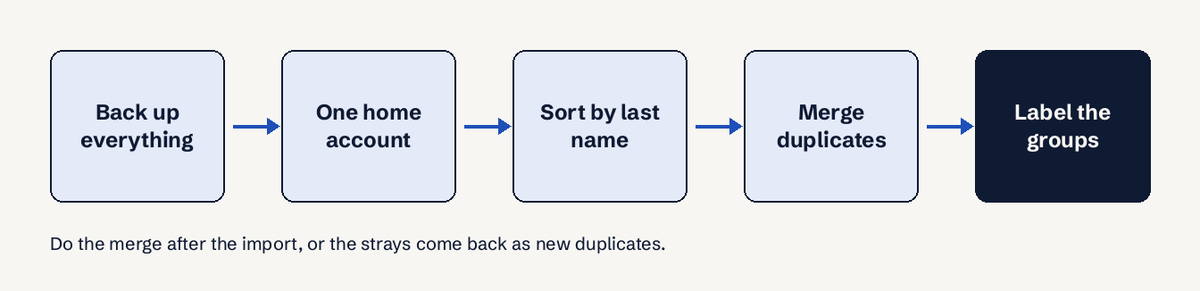
- Pick one home account. Contacts split across iCloud, Google and an old SIM are the main cause of duplicates. Pick the account you use everywhere (Google if you use Android or Gmail, iCloud if you only use Apple devices, Outlook if your work lives in Microsoft 365) and set it as the default for new contacts. On iPhone: Settings > Apps > Contacts > Default Account.
- Move the strays into it. Export the other sources as vCard (.vcf) or CSV and import them into the home account. In Google Contacts the import sits under Import on the left; Outlook takes CSV under People > Manage contacts > Import contacts.
- Set the sort and display order. On iPhone: Settings > Apps > Contacts > Sort Order > Last, First (on iOS 17 and older the path is Settings > Contacts). On Android with Google Contacts: Settings > Sort by > Last name. Your contacts now appear in alphabetical order by surname.
- Merge duplicates. In Google Contacts on a computer: Menu > Merge & fix, then Merge or Merge all (Google Help). On iPhone, open Contacts and tap the Duplicates Found banner at the top, then Merge All. In new Outlook, People shows duplicates you can link.
- Group with labels or lists. Google Contacts: next to Labels, click Create label, name it, Save, then select contacts > Manage labels > Apply (Google Help). iPhone (iOS 18 and later): Contacts > Lists > Add List. New Outlook: People > the arrow next to New contact > New contact list (Microsoft Support).
- Fill the same core fields. Name, company, 1 primary phone, one primary email, and for business contacts the role and how you met. Put free notes in the Notes field, not in the name.
- Stop the clutter coming back. Gmail saves everyone you email into Other contacts. To stop it, open Gmail Settings and under Create contacts for auto-complete pick I'll add contacts myself (Google Help).
How do I put my contacts in alphabetical order?
Contacts are already listed alphabetically; what you choose is whether by first or last name. On iPhone go to Settings > Apps > Contacts > Sort Order and pick Last, First. On Android open Google Contacts > Settings > Sort by. If a contact still sorts in the wrong place, its whole name is probably typed into the First name field: edit it and split first and last name. Business names saved in the name field sort by their first word, so "The Print Shop" sits under T unless you save it as a company.
How do I organize contacts on iPhone and Android?
On iPhone, iOS 18 added lists inside the Contacts app: tap Lists at the top left, tap Add List, name it and add people. Lists replace the old trick of making iCloud groups on a Mac. Android uses Google Contacts labels, which sync with Gmail on the web, so a label made on a laptop appears on the phone. Two limits are worth knowing:
- Google cannot merge contacts saved in two different Google accounts (Google Help). Move them into one account first.
- When a Google contact has several email addresses, only the default one joins a label group (Google Help). Check the default before you email a label.
| Task | iPhone (iOS 18+) | Android / Google Contacts | New Outlook |
|---|---|---|---|
| Sort by last name | Settings > Apps > Contacts > Sort Order | Settings > Sort by | Sort menu in People |
| Group contacts | Lists > Add List | Create label | New contact list |
| Merge duplicates | Duplicates Found > Merge All | Merge & fix | Link duplicates |
| Back up | iCloud sync | Export > Google CSV | Export to CSV |
How should a business organize client contacts?
A business should organize client contacts around the company, not the person. People change jobs; the client account stays. Use this standard for every record:
| Field | Example | Why it matters |
|---|---|---|
| Company | Northwind Design Studio | Groups everyone at one client |
| Role | Accounts payable | Tells you who to send invoices to |
| Primary email and phone | one each, marked primary | Avoids sending to an old address |
| Source | Referral, website form, trade fair | Shows which channel brings clients |
| Status label | Lead, Client, Supplier, Past client | Lets you filter in one tap |
| Last contact date | 2 days ago (2026-11-05) | Shows who needs a follow-up |
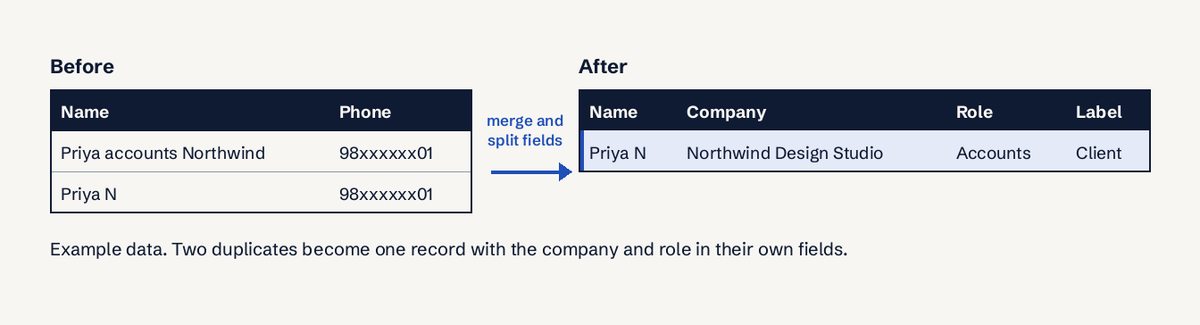
Labels by status (lead, client, supplier) beat labels by how you feel about someone. Keep the list of labels short, 10 labels per account or fewer, or nobody on the team uses them the same way. A Reddit thread on r/datacurator about organizing a contact directory lands on the same point: a few consistent fields beat a deep folder tree.
Once a phone list holds more than 300 clients, or more than one person updates it, the phone app stops being enough: there is no shared history, no follow-up date that reminds you, and no link from a contact to the quotes and invoices you sent them. That is the job of a CRM. LuckPanda's CRM keeps clients and their contacts on the same record as their quotes, invoices and payments, imports a CSV export from Google or Outlook, and is free to use for keeping clients; you pay per module only when you issue and send documents.
How do I merge duplicate contacts?
Merge duplicates with the tool your home account provides, after you have imported everything:
- Google Contacts: Menu > Merge & fix > Merge all. If you see no "Merge duplicates" option, Google found none. You can separate a merged contact later by undoing changes.
- iPhone: the Duplicates Found banner in Contacts, then View Duplicates > Merge All.
- Outlook: People shows suggested duplicates to link into one card.
Duplicates the tools miss usually differ in spelling or have no shared phone or email. Sort by company, scan each company's group, and merge by hand. Budget roughly 1 minute per 50 contacts on a laptop.
How to check it worked
- Search 3 clients by surname (about 5 minutes): each should return one card.
- Open a label or list and count it: the number should match what you expect.
- Add a test contact on your phone and check it appears on your laptop within 1 to 2 minutes. If it does not, the phone's default account is still the old one.
Common problems and fixes
- "Contacts reappear after I delete them." A second account is still syncing them. On iPhone check Settings > Apps > Contacts > Accounts and turn Contacts off for the account you no longer use.
- "My label is missing people on the phone." Labels belong to one Google account. Contacts saved to the device or another account are not in it.
- "Gmail suggests people I never saved." They are in Other contacts. Turn off auto-saving as in step 7, then delete the ones you do not need.
- "I can't select all contacts to export." On a work or school Google account the Directory cannot be selected all at once (Google Help); export your own contacts instead.
For lead lists that grow from your website, see how web forms feed leads into the same list, and how a sales pipeline tracks who needs the next follow-up. If you capture leads from chat, the lead generation chatbot use case covers that route.
Questions
What is the best way to organize contacts?
Keep every contact in one account, sort by last name, merge duplicates, and group with a short set of labels such as Client, Supplier and Lead. Fill the same core fields on every record so you can filter, not just scroll.
How do I put my contacts in alphabetical order on iPhone?
Go to Settings > Apps > Contacts > Sort Order and choose Last, First or First, Last. On iOS 17 and older the setting is under Settings > Contacts.
Can I group contacts on an iPhone without a Mac?
Yes. Since iOS 18 the Contacts app has Lists: tap Lists at the top left, then Add List. Before iOS 18 you had to make groups on iCloud.com or a Mac.
How do I organize business contacts separately from personal ones?
Use a label or list such as "Clients" and "Suppliers", or keep business contacts in a separate work account. A separate account keeps them apart on every device and makes exporting them to a CRM simple.
When should a small business move contacts into a CRM?
When 2 or more people update the list, when 20% or more of your clients go 30 days without a follow-up, when you need follow-up reminders, or when you want each contact linked to the quotes, invoices and payments you exchanged. Phone contact apps do none of these.